

Monitor Arm Benefits for Small Desks: 2026 Guide
Table of Contents
- How Much Desk Space Can a Monitor Arm Actually Save?
- Monitor Arm vs Monitor Stand: Which Is Right for a Compact Workspace?
- The Ergonomics Edge: Posture and Pain Relief Benefits
- Monitor Arm Desk Clamp Requirements: Is Your Desk Compatible?
- Planning Your Setup: Wall Clearance and Desk Depth
- Ergonomic Workspace Setup Tips: Pairing Your Arm with the Right Accessories
- Choosing the Right Arm for Your Small Desk
- Conclusion: Reclaim Your Desk Footprint
- Frequently Asked Questions
Last Updated: September 7, 2026
A single off-center monitor arm can generate 2 to 4 times higher local bending and sag on a desktop surface compared to the same weight distributed across a standard base, according to Eureka Ergonomic's structural analysis. For anyone working on a compact desk, that trade-off matters more than the promise of reclaimed space. The monitor arm benefits for small desks go far beyond aesthetics, but they come with real physical constraints you need to plan around before you buy.
In this guide, we break down how much footprint you can recover, which mounts work on thin desktops, and why wall clearance often undoes the space you thought you were saving.
The 2026 industry outlook from Brateck's Monitor Arm Trends Report confirms that flexible mounting hardware is now central to maximizing usable surface area on smaller workstations. That tracks with what we see in practice: most compact desks lose their usable depth to a bulky stand footprint, not to the monitor itself.
How Much Desk Space Can a Monitor Arm Actually Save?
A monitor arm typically recovers between 8 and 12 inches of desk depth by lifting the screen off the surface entirely. For a desk that is only 24 inches deep, reclaiming 10 inches changes the entire character of the workspace.
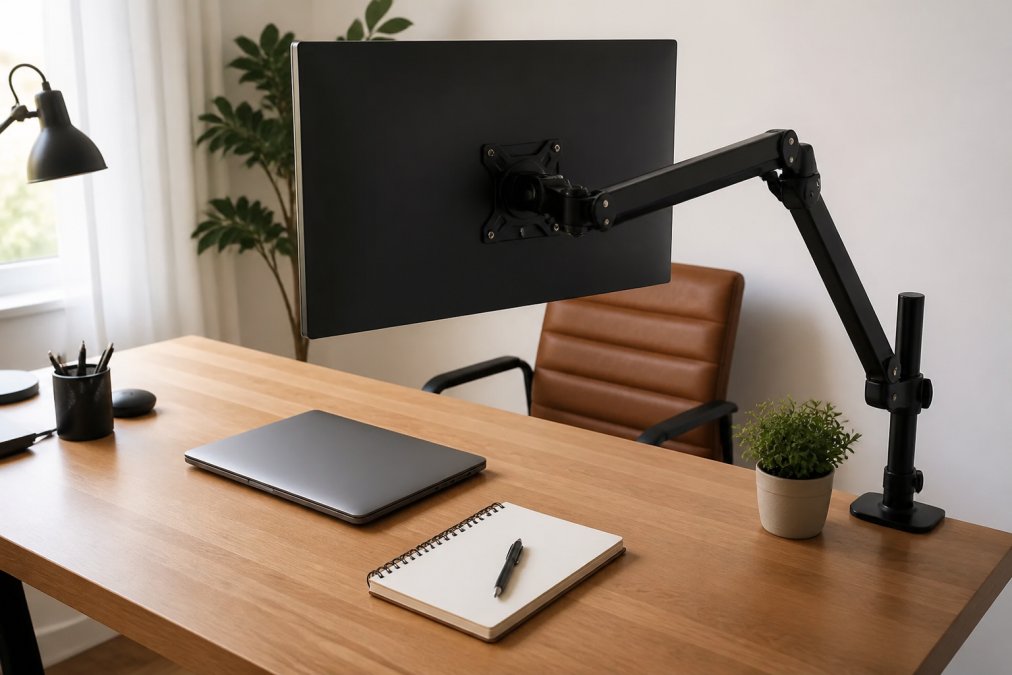
A stand forces a fixed geometry: the base sits at a set distance from the screen. An arm lets you push the monitor flush against the back edge of the desk when not in use, then pull it forward to your preferred viewing distance while working.
Monitor Arm vs Monitor Stand: Which Is Right for a Compact Workspace?
A fixed monitor stand is the better choice only when your desk is too thin for a secure clamp and you never adjust your screen position. For nearly every other compact workspace, an articulating arm wins because it removes the permanent footprint from your desk surface.
| Feature | Monitor Arm | Fixed Stand |
|---|---|---|
| Desk footprint | None (clamp mount) | 8-12 inches of depth |
| Height adjustment | Full vertical range | Limited or none |
| Screen positioning | Pull forward, push back | Fixed location |
| Desk requirements | Clamp needs 0.6-2.4 in. thickness | Works on any desk |
| Cable management | Integrated channels | Exposed cables |
| Shared workstation use | Quick re-positioning | Requires moving the stand |
The trade-off appears when you factor in installation. Arms require mounting hardware and tension adjustment, while a stand just sits there.
The Ergonomics Edge: Posture and Pain Relief Benefits
The monitor arm benefits extend to physical health in ways a stand cannot replicate. Proper monitor placement reduces neck and shoulder pain by letting you align the top of the screen with eye level rather than hunching toward a low display. Industry guidance from Bestier's integrated setup guides highlights that micro-adjustability in height, tilt, and depth helps prevent long-term strain during extended sessions.
The Mechanism Behind the Strain Relief
Most desk setups fail ergonomically because the user's head drifts forward to compensate for a screen that sits too far away or too low. On a 24-inch-deep desk, a standard stand places the screen roughly 18 to 20 inches from your eyes, but the top lands 4 to 6 inches below eye level, forcing your cervical spine into flexion. Over a 6-hour workday, that forward head posture adds measurable load to the neck muscles, causing tension headaches and upper-back stiffness by mid-afternoon.
An arm changes the geometry. You can raise the monitor so the top bezel sits at or just below eye level, keeping your cervical spine neutral, and pull the screen closer, down to 16 inches if your desk allows, reducing the tendency to lean forward. Fixed stands simply do not offer this vertical adjustability.
The 20-20-20 Rule and Micro-Movements
Most practitioners recommend the 20-20-20 rule: every 20 minutes, look at something 20 feet away for 20 seconds. A properly tensioned arm lets you push the monitor back and pull it forward throughout the day, changing your focal length and forcing small postural shifts that interrupt static loading on your trapezius and rhomboids. A fixed stand locks you into one position, so your return-to-work posture is identical to the posture that caused the strain.
Dynamic Adjustment for Shared Desks
Monitor arms facilitate the sharing of workstations by allowing users of varying heights to quickly adjust screen elevation and distance. For a household where one person is 5'4" and another is 6'1", the vertical range of a gas-spring arm, typically 8 to 12 inches, accommodates both without compromise. A fixed stand leaves at least one user in a strained position.
The Hidden Ergonomics Gain: Depth Perception and Focus
A less obvious benefit is the ability to position the monitor at the correct focal distance for your visual acuity. The American Optometric Association recommends a viewing distance of 20 to 40 inches for computer work. On a small desk, a stand often forces the screen to the back edge, pushing the viewing distance to 30 inches or more, which may exceed the comfortable focal range for users over 40 with presbyopia. An arm lets you pull the screen to 22 or 24 inches, the sweet spot for most users. This is a monitor arm benefit that goes beyond posture, it directly affects visual comfort and productivity.
Monitor Arm Desk Clamp Requirements: Is Your Desk Compatible?
Most clamp-on mounts require a desktop thickness between 0.6 and 2.4 inches, and a flat underside for the clamp plate to grip. Before you buy, measure your desk edge with a caliper and check for obstructions like support bars or cable trays that sit under the mounting point.
Desktop Thickness and Material: What Actually Happens Under Load
Solid wood and thick plywood handle clamps well. Hollow-core or particleboard desktops compress under pressure, and the clamp can slowly crush the surface over months of use. A 5/8-inch desktop, common on budget desks, sits right at the minimum threshold for most arms and may require a reinforcement plate.
The failure mechanism is creep. When a clamp applies a point load of 30 to 50 pounds (the weight of a monitor plus the arm's leverage), the resin in particleboard and MDF slowly deforms over weeks, resulting in a visible indentation and a loose clamp. On a hollow-core door desk, the top veneer is often only 1/8-inch thick, and the clamp can punch through the surface entirely.
The 7-Inch Rule for Clamp Placement
Most clamp specs only tell you the thickness range, they rarely tell you how far from the edge the clamp must sit. A C-clamp needs at least 1.5 inches of flat surface from the edge to grip properly, but on a small desk the mounting point is often near a corner where structural support is weakest. You also need at least 2 inches of unobstructed space below the desktop for the clamp's lower jaw to open fully.
Reinforcement Solutions for Thin or Fragile Desks
Clamp-on mounts on thin desktops may require additional reinforcement to prevent damage or sagging, as noted by technical discussions on desktop structural integrity. A steel or aluminum plate placed on the underside of the desk spreads the clamp's point load across a wider area. Many arms ship with a small plate; for thinner desks, upgrade to a wider one that spans at least 4 inches.
For glass desks, the rules are entirely different. A clamp on a glass desktop is a fracture risk, the point load can create a stress concentration that shatters the panel. If you have a glass desk, you need a mount that clamps to the frame or a desk with a solid wood or metal top. There is no safe DIY reinforcement for glass; the material does not distribute load the way wood does.
For particleboard desks under 0.6 inches thick, a common DIY solution is a 1/4-inch steel plate (6 x 6 inches) placed on the underside, with the clamp bolting through both the plate and the desktop. A simpler alternative is a 3/4-inch plywood spacer glued to the underside, which effectively thickens the desktop to the clamp's minimum range. Both solutions are inexpensive, under $15 in materials, and take less than 30 minutes to install.
The Clamp Torque Trap
A second failure mode is over-tightening. Users often crank the clamp bolt to maximum torque to "make sure it's secure," but the clamp's lever arm multiplies the force at the bolt, and over-tightening can crack a particleboard surface or strip the threads. Most arms specify a hand-tight torque, usually 10 to 15 foot-pounds. Tighten until snug, then test for movement by pushing the arm laterally, tightening by quarter-turns until it holds.
Measuring Your Desk Before You Buy
Before purchasing, measure three things: (1) the desktop thickness at the mounting point using a caliper, not a ruler; (2) the clearance below the desk for the clamp jaw; and (3) the distance from the desk edge to any wall or obstruction behind it. These determine whether a standard clamp will work, whether you need a reinforcement plate, and whether the arm's full range of motion is usable.
Planning Your Setup: Wall Clearance and Desk Depth
Some monitor arms require the desk to be pushed at least 7 inches away from the wall to allow for full arm extension and articulation. This constraint can completely negate your space savings.
Measure the arm's full extension range before mounting. A fully articulated arm reaches forward and back, but it also swings side to side. If your desk sits flush against a wall, the arm's rear pivot point needs clearance to move without scraping the wall.
| Arm Type | Min. Wall Clearance | Max Reach | Best For |
|---|---|---|---|
| Single articulating | 4-7 inches | 20-24 inches | Corner desks, deep desks |
| Gas spring | 2-4 inches | 18-22 inches | Shallow desks against walls |
| Fixed pole | 1-2 inches | 12-16 inches | Minimal adjustment needs |
Ergonomic Workspace Setup Tips: Pairing Your Arm with the Right Accessories
An arm alone does not complete an ergonomic workspace. Pair it with a monitor that supports VESA mounting (the standard 75x75 or 100x100 mm hole pattern), and confirm the arm's weight capacity exceeds your monitor's weight by at least 20 percent.
Cable management is the finishing touch. Route cables through the arm's integrated channels and secure them with velcro ties so they do not catch on the articulating joints. A keyboard tray or a slim monitor riser for your laptop keeps the now-open desk surface functional rather than cluttered.
Choosing the Right Arm for Your Small Desk
The best arm for a compact workspace balances three factors: weight capacity, reach, and desk compatibility. A monitor arm benefits from a gas spring design if you adjust position frequently; a friction arm is cheaper but stiffer to move. Verify the clamp range matches your desktop thickness.
For most single-monitor setups on desks 24 inches deep or less, a gas spring arm with a 2 to 4 inch wall clearance requirement is the sweet spot. Dual monitor setups need a heavier-duty arm with a wider clamp plate and even more careful planning around desk depth and wall position.
Conclusion: Reclaim Your Desk Footprint
The monitor arm benefits for small desks are real, but they are conditional. You reclaim 8 to 12 inches of depth only if your desk can support the clamp, your wall clearance allows full articulation, and your monitor is VESA-compatible. Measure those three variables first, and the upgrade transforms your workspace.
ShopVerse.life carries a curated selection of monitor arms and ergonomic desk accessories vetted for build quality and desk compatibility. Every purchase is backed by our money-back guarantee and 24/7 support, so you can upgrade your workspace with confidence. Browse our electronics collection to find the right arm for your setup, and reclaim your desk footprint today.
Frequently Asked Questions
Is my desk strong enough for a monitor arm?
Most solid wood and standard particle board desks are strong enough. The critical factor is desktop thickness. Clamp-on mounts typically require a desktop thickness between 0.4 and 3.1 inches. If your desk is thinner, like a 5/8-inch hollow core door, you may need a reinforcement plate to prevent damage. Check the arm's specifications for its clamp range and your desk's weight capacity before installing.
Are monitor arms better for ergonomics than standard stands?
Yes, monitor arms offer superior ergonomic benefits because they provide independent vertical adjustment, tilt, and swivel. This allows you to align the top of your screen with your eye level, reducing neck and shoulder pain. Unlike standard stands, arms allow dynamic adjustment throughout the day, which is critical for maintaining good posture and preventing eye strain.
How much desk space can a monitor arm actually save?
A monitor arm frees up the entire footprint of the original stand, which can be substantial. This reclaimed space is ideal for a keyboard, notebook, or other peripherals. However, some arms require your desk to be positioned at least 7 inches away from the wall for full articulation, so you are trading front-to-back depth for usable surface area.
What are the monitor arm desk clamp requirements for a small desk?
The main requirement is a flat, sturdy edge with adequate thickness, usually between 0.4 and 3.1 inches, for the clamp to grip securely. You also need to ensure the clamp's C-clamp opening matches your desktop's edge profile. For thin desks, you should use a steel reinforcement plate to distribute the load and prevent sagging or cracking.